 49d502341c
- Removed .bunx section from bun run docs (keep it focused on running scripts)
- Significantly expanded .bunx documentation in bun install docs
- Now properly explains how bin linking works during package installation
- Added detailed explanation of how .bunx files are created during install
- Better structured with subsections for clarity
- Emphasizes this is a package installation feature, not just runtime

🤖 Generated with [Claude Code](https://claude.ai/code)

Co-Authored-By: Claude <noreply@anthropic.com>
9.0 KiB
The bun CLI contains an npm-compatible package manager designed to be a faster replacement for existing package management tools like npm, yarn, and pnpm. It's designed for Node.js compatibility; use it in any Bun or Node.js project.
{% callout %}
⚡️ 80x faster — Switch from npm install to bun install in any Node.js project to make your installations up to 80x faster.
{% image src="https://user-images.githubusercontent.com/709451/147004342-571b6123-17a9-49a2-8bfd-dcfc5204047e.png" height="200" /%}
{% /callout %}
{% details summary="For Linux users" %}
The minimum Linux Kernel version is 5.1. If you're on Linux kernel 5.1 - 5.5, bun install should still work, but HTTP requests will be slow due to a lack of support for io_uring's connect() operation.
If you're using Ubuntu 20.04, here's how to install a newer kernel:
# If this returns a version >= 5.6, you don't need to do anything
uname -r

# Install the official Ubuntu hardware enablement kernel
sudo apt install --install-recommends linux-generic-hwe-20.04
{% /details %}
Manage dependencies
bun install
To install all dependencies of a project:
$ bun install
On Linux, bun install tends to install packages 20-100x faster than npm install. On macOS, it's more like 4-80x.
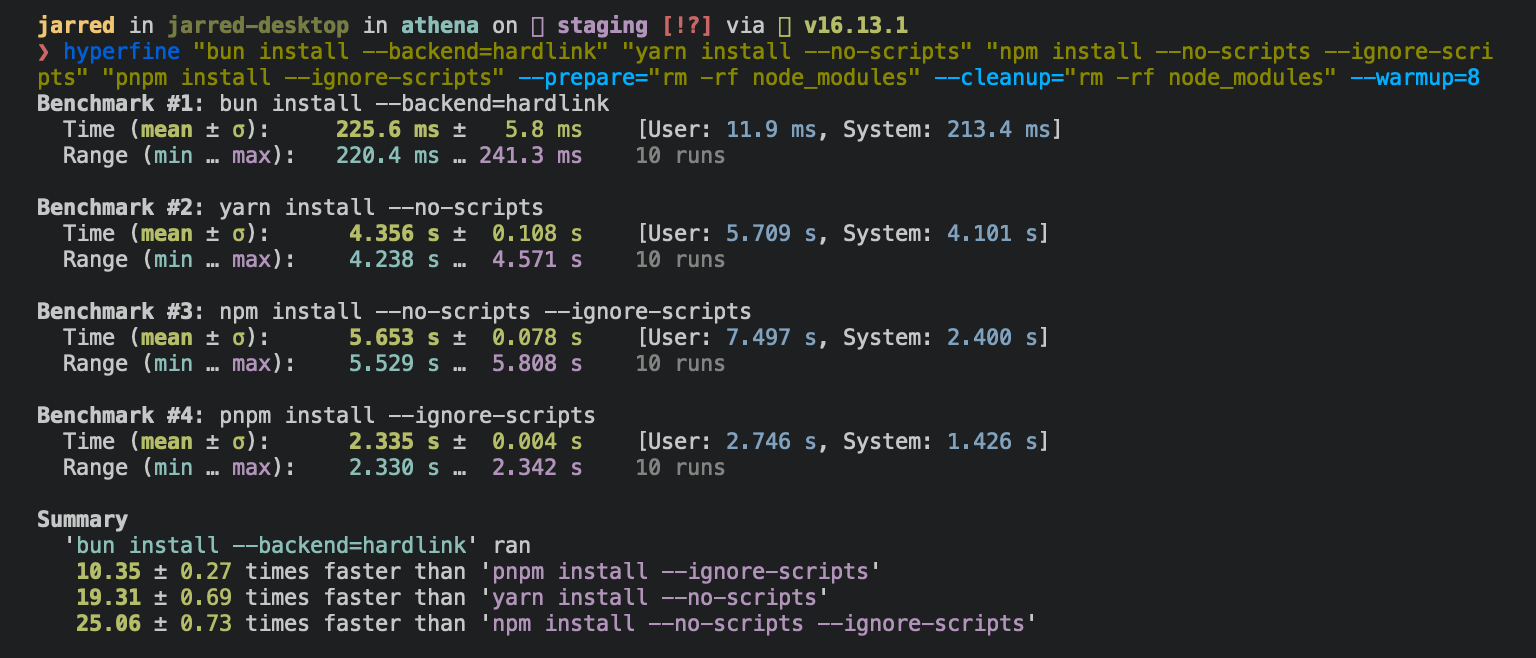
Running bun install will:
- Install all
dependencies,devDependencies, andoptionalDependencies. Bun will installpeerDependenciesby default. - Run your project's
{pre|post}installscripts at the appropriate time. For security reasons Bun does not execute lifecycle scripts of installed dependencies. - Write a
bun.locklockfile to the project root.
To install in production mode (i.e. without devDependencies):
$ bun install --production
To install dependencies without allowing changes to lockfile (useful on CI):
$ bun install --frozen-lockfile
To exclude dependency types from installing, use --omit with dev, optional, or peer:
# Disable devDependencies and optionalDependencies
$ bun install --omit=dev --omit=optional
To perform a dry run (i.e. don't actually install anything or update the lockfile):
$ bun install --dry-run
To generate a lockfile without install packages:
$ bun install --lockfile-only
To modify logging verbosity:
$ bun install --verbose # debug logging
$ bun install --silent  # no logging
To use isolated installs instead of the default hoisted strategy:
$ bun install --linker isolated
Isolated installs create strict dependency isolation similar to pnpm, preventing phantom dependencies and ensuring more deterministic builds. For complete documentation, see Isolated installs.
{% details summary="Configuring behavior" %}
The default behavior of bun install can be configured in bunfig.toml:
[install]

# whether to install optionalDependencies
optional = true

# whether to install devDependencies
dev = true

# whether to install peerDependencies
peer = true

# equivalent to `--production` flag
production = false

# equivalent to `--save-text-lockfile` flag
saveTextLockfile = false

# equivalent to `--frozen-lockfile` flag
frozenLockfile = false

# equivalent to `--dry-run` flag
dryRun = false

# equivalent to `--concurrent-scripts` flag
concurrentScripts = 16 # (cpu count or GOMAXPROCS) x2

# installation strategy: "hoisted" or "isolated"
# default: "hoisted"
linker = "hoisted"
{% /details %}
bun add
To add a particular package:
$ bun add preact
To specify a version, version range, or tag:
$ bun add zod@3.20.0
$ bun add zod@^3.0.0
$ bun add zod@latest
To add a package as a dev dependency ("devDependencies"):
$ bun add --dev @types/react
$ bun add -d @types/react
To add a package as an optional dependency ("optionalDependencies"):
$ bun add --optional lodash
To add a package as a peer dependency ("peerDependencies"):
$ bun add --peer @types/bun
To install a package globally:
$ bun add --global cowsay # or `bun add -g cowsay`
$ cowsay "Bun!"
 ______
< Bun! >
 ------
        \   ^__^
         \  (oo)\_______
            (__)\       )\/\
                ||----w |
                ||     ||
{% details summary="Configuring global installation behavior" %}
[install]
# where `bun install --global` installs packages
globalDir = "~/.bun/install/global"

# where globally-installed package bins are linked
globalBinDir = "~/.bun/bin"
{% /details %} To view a complete list of options for a given command:
$ bun add --help
bun remove
To remove a dependency:
$ bun remove preact
Package executables and bin linking
When you install packages that define executables in their "bin" field, Bun automatically creates links to these executables in node_modules/.bin. This makes them available for execution via bun run, bunx, or directly in package.json scripts.
{
  "name": "my-package",
  "bin": {
    "my-cli": "./cli.js"
  }
}
After running bun install, you can execute these binaries in several ways:
# Via bun run
$ bun run my-cli

# Via bunx
$ bunx my-cli

# In package.json scripts
{
  "scripts": {
    "build": "my-cli --build"
  }
}
How bin linking works on Windows with .bunx files
On Windows, bun install uses a special .bunx file format when creating executable links instead of traditional symlinks. This innovative approach solves several Windows-specific challenges:
Why .bunx files?
Traditional package managers struggle with executables on Windows, often creating multiple wrapper files (.cmd, .sh, .ps1) for each binary. Bun's .bunx format was engineered to address these issues:
- Symlinks are not guaranteed to work on Windows - Different filesystems and permission levels can prevent symlink creation
- Shebangs (
#!/usr/bin/env node) are not read on Windows - Windows doesn't natively support Unix-style shebangs - Multiple wrapper files cause confusion - Having
.cmd,.sh, and.ps1versions of each executable cluttersnode_modules/.bin - Poor developer experience - The infamous "Terminate batch job? (Y/n)" prompt interrupts workflow when stopping scripts
How .bunx files work
The .bunx file is a cross-filesystem symlink that can start scripts or executables using either Bun or Node.js. When bun install processes a package with binaries:
- Instead of creating traditional symlinks or wrapper scripts, it creates a single
.bunxfile - This file acts as a universal executable that works across different Windows configurations
- The file correctly handles both Bun and Node.js execution contexts
- No additional wrapper files are needed
Performance benefits
The .bunx format delivers significant performance improvements:
bun runis 11x faster thannpm runon Windowsbunxis 11x faster thannpxfor executing package binaries- Startup time is dramatically reduced by avoiding batch file indirection
{% image src="/images/bun-run-on-windows.png" caption="Time spent running bunx cowsay vs npx cowsay on Windows." /%}
Better developer experience
Beyond performance, .bunx files improve the development workflow:
- No more "Terminate batch job?" prompts - Clean interruption when pressing Ctrl+C
- Works with both Bun and Node.js - Even if you only use Bun as a package manager, executables work correctly with Node.js
- Simplified debugging - Single file format makes it easier to understand what's being executed
{% image src="/images/terminate-batch-job-bun.gif" /%}
{% image src="/images/terminate-batch-job-npm.gif" /%}
The .bunx format is automatically used when you run bun install on Windows - no configuration needed. It's part of Bun's commitment to making JavaScript development faster and more enjoyable on every platform.
Git dependencies
To add a dependency from a git repository:
$ bun install git@github.com:moment/moment.git
Bun supports a variety of protocols, including github, git, git+ssh, git+https, and many more.
{
  "dependencies": {
    "dayjs": "git+https://github.com/iamkun/dayjs.git",
    "lodash": "git+ssh://github.com/lodash/lodash.git#4.17.21",
    "moment": "git@github.com:moment/moment.git",
    "zod": "github:colinhacks/zod"
  }
}
Tarball dependencies
A package name can correspond to a publicly hosted .tgz file. During bun install, Bun will download and install the package from the specified tarball URL, rather than from the package registry.
{
  "dependencies": {
    "zod": "https://registry.npmjs.org/zod/-/zod-3.21.4.tgz"
  }
}