 f7da0ac6fd
### What does this PR do?

fixes #22679

* includes a better error if a package cant be met because of the age
(but would normally)
* logs the resolved one in --verbose (which can be helpful in debugging
to show it does know latest but couldn't use)
* makes bun outdated show in the table when the package isn't true
latest
* includes a rudimentary "stability" check if a later version is in
blacked out time (but only up to 7 days as it goes back to latest with
min age)


For extended security we could also Last-Modified header of the tgz
download and then abort if too new (just like the hash)


| install error with no recent version | bun outdated respecting the
rule |
| --- | --- |
<img width="838" height="119" alt="image"
src="https://github.com/user-attachments/assets/b60916a8-27f6-4405-bfb6-57f9fa8bb0d6"
/> | <img width="609" height="314" alt="image"
src="https://github.com/user-attachments/assets/d8869ff4-8e16-492c-8e4c-9ac1dfa302ba"
/> |

For stable release we will make it use `3d` type syntax instead of magic
second numbers.


### How did you verify your code works?

tests & manual

---------

Co-authored-by: autofix-ci[bot] <114827586+autofix-ci[bot]@users.noreply.github.com>
Co-authored-by: Dylan Conway <dylan.conway567@gmail.com>
11 KiB
The bun CLI contains a Node.js-compatible package manager designed to be a dramatically faster replacement for npm, yarn, and pnpm. It's a standalone tool that will work in pre-existing Node.js projects; if your project has a package.json, bun install can help you speed up your workflow.
{% callout %}
⚡️ 25x faster — Switch from npm install to bun install in any Node.js project to make your installations up to 25x faster.
{% image src="https://user-images.githubusercontent.com/709451/147004342-571b6123-17a9-49a2-8bfd-dcfc5204047e.png" height="200" /%}
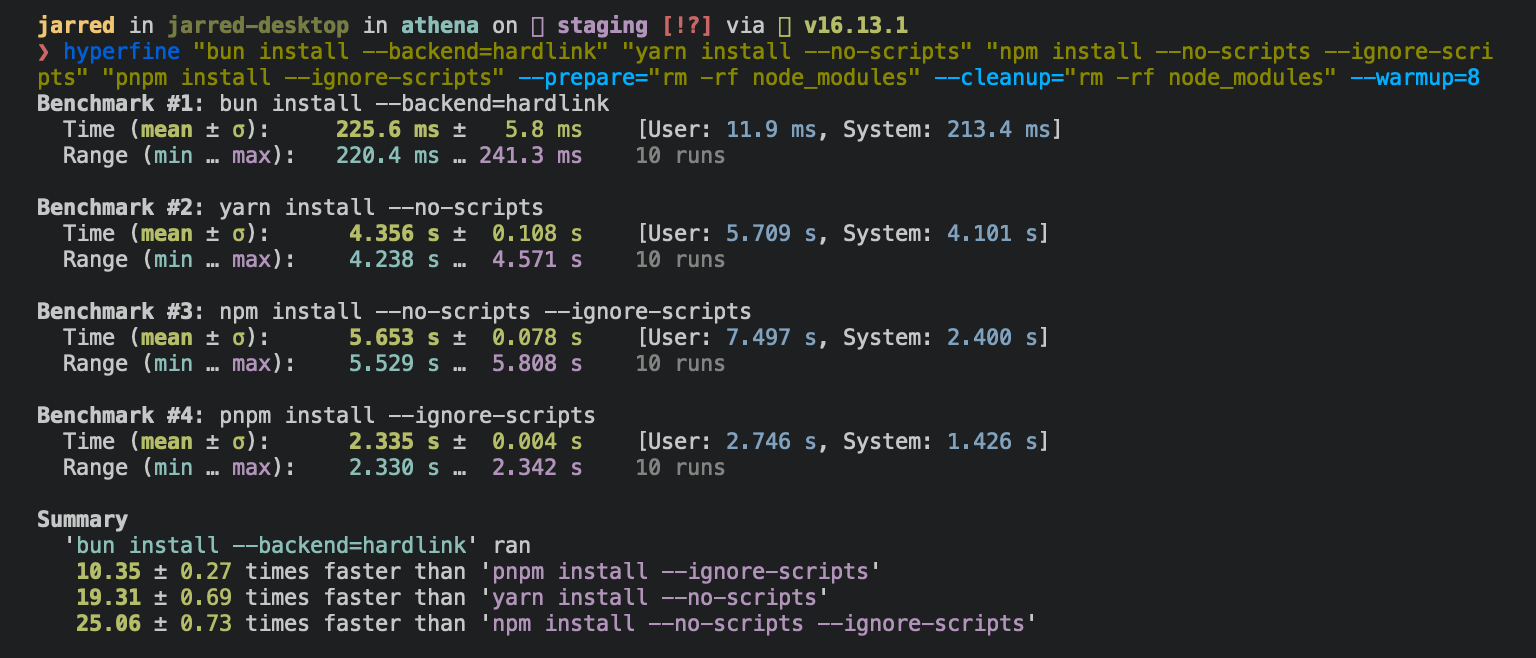
{% /callout %}
{% callout %}
💾 Disk efficient — Bun install stores all packages in a global cache (~/.bun/install/cache/) and creates hardlinks (Linux) or copy-on-write clones (macOS) to node_modules. This means duplicate packages across projects point to the same underlying data, taking up virtually no extra disk space.
For more details, see Package manager > Global cache.
{% /callout %}
{% details summary="For Linux users" %}
The recommended minimum Linux Kernel version is 5.6. If you're on Linux kernel 5.1 - 5.5, bun install will work, but HTTP requests will be slow due to a lack of support for io_uring's connect() operation.
If you're using Ubuntu 20.04, here's how to install a newer kernel:
# If this returns a version >= 5.6, you don't need to do anything
$ uname -r

# Install the official Ubuntu hardware enablement kernel
$ sudo apt install --install-recommends linux-generic-hwe-20.04
{% /details %}
To install all dependencies of a project:
$ bun install
Running bun install will:
- Install all
dependencies,devDependencies, andoptionalDependencies. Bun will installpeerDependenciesby default. - Run your project's
{pre|post}installand{pre|post}preparescripts at the appropriate time. For security reasons Bun does not execute lifecycle scripts of installed dependencies. - Write a
bun.locklockfile to the project root.
Logging
To modify logging verbosity:
$ bun install --verbose # debug logging
$ bun install --silent  # no logging
Lifecycle scripts
Unlike other npm clients, Bun does not execute arbitrary lifecycle scripts like postinstall for installed dependencies. Executing arbitrary scripts represents a potential security risk.
To tell Bun to allow lifecycle scripts for a particular package, add the package to trustedDependencies in your package.json.
  {
    "name": "my-app",
    "version": "1.0.0",
+   "trustedDependencies": ["my-trusted-package"]
  }
Then re-install the package. Bun will read this field and run lifecycle scripts for my-trusted-package.
Lifecycle scripts will run in parallel during installation. To adjust the maximum number of concurrent scripts, use the --concurrent-scripts flag. The default is two times the reported cpu count or GOMAXPROCS.
$ bun install --concurrent-scripts 5
Workspaces
Bun supports "workspaces" in package.json. For complete documentation refer to Package manager > Workspaces.
{
  "name": "my-app",
  "version": "1.0.0",
  "workspaces": ["packages/*"],
  "dependencies": {
    "preact": "^10.5.13"
  }
}
Installing dependencies for specific packages
In a monorepo, you can install the dependencies for a subset of packages using the --filter flag.
# Install dependencies for all workspaces except `pkg-c`
$ bun install --filter '!pkg-c'

# Install dependencies for only `pkg-a` in `./packages/pkg-a`
$ bun install --filter './packages/pkg-a'
For more information on filtering with bun install, refer to Package Manager > Filtering
Overrides and resolutions
Bun supports npm's "overrides" and Yarn's "resolutions" in package.json. These are mechanisms for specifying a version range for metadependencies—the dependencies of your dependencies. Refer to Package manager > Overrides and resolutions for complete documentation.
  {
    "name": "my-app",
    "dependencies": {
      "foo": "^2.0.0"
    },
+   "overrides": {
+     "bar": "~4.4.0"
+   }
  }
Global packages
To install a package globally, use the -g/--global flag. Typically this is used for installing command-line tools.
$ bun install --global cowsay # or `bun install -g cowsay`
$ cowsay "Bun!"
 ______
< Bun! >
 ------
        \   ^__^
         \  (oo)\_______
            (__)\       )\/\
                ||----w |
                ||     ||
Production mode
To install in production mode (i.e. without devDependencies or optionalDependencies):
$ bun install --production
For reproducible installs, use --frozen-lockfile. This will install the exact versions of each package specified in the lockfile. If your package.json disagrees with bun.lock, Bun will exit with an error. The lockfile will not be updated.
$ bun install --frozen-lockfile
For more information on Bun's lockfile bun.lock, refer to Package manager > Lockfile.
Omitting dependencies
To omit dev, peer, or optional dependencies use the --omit flag.
# Exclude "devDependencies" from the installation. This will apply to the
# root package and workspaces if they exist. Transitive dependencies will
# not have "devDependencies".
$ bun install --omit dev

# Install only dependencies from "dependencies"
$ bun install --omit=dev --omit=peer --omit=optional
Dry run
To perform a dry run (i.e. don't actually install anything):
$ bun install --dry-run
Non-npm dependencies
Bun supports installing dependencies from Git, GitHub, and local or remotely-hosted tarballs. For complete documentation refer to Package manager > Git, GitHub, and tarball dependencies.
{
  "dependencies": {
    "dayjs": "git+https://github.com/iamkun/dayjs.git",
    "lodash": "git+ssh://github.com/lodash/lodash.git#4.17.21",
    "moment": "git@github.com:moment/moment.git",
    "zod": "github:colinhacks/zod",
    "react": "https://registry.npmjs.org/react/-/react-18.2.0.tgz",
    "bun-types": "npm:@types/bun"
  }
}
Installation strategies
Bun supports two package installation strategies that determine how dependencies are organized in node_modules:
Hoisted installs (default for single projects)
The traditional npm/Yarn approach that flattens dependencies into a shared node_modules directory:
$ bun install --linker hoisted
Isolated installs
A pnpm-like approach that creates strict dependency isolation to prevent phantom dependencies:
$ bun install --linker isolated
Isolated installs create a central package store in node_modules/.bun/ with symlinks in the top-level node_modules. This ensures packages can only access their declared dependencies.
For complete documentation on isolated installs, refer to Package manager > Isolated installs.
Disk efficiency
Bun uses a global cache at ~/.bun/install/cache/ to minimize disk usage. Packages are stored once and linked to node_modules using hardlinks (Linux/Windows) or copy-on-write (macOS), so duplicate packages across projects don't consume additional disk space.
For complete documentation refer to Package manager > Global cache.
Minimum release age
To protect against supply chain attacks where malicious packages are quickly published, you can configure a minimum age requirement for npm packages. Package versions published more recently than the specified threshold (in seconds) will be filtered out during installation.
# Only install package versions published at least 3 days ago
$ bun add @types/bun --minimum-release-age 259200 # seconds
You can also configure this in bunfig.toml:
[install]
# Only install package versions published at least 3 days ago
minimumReleaseAge = 259200 # seconds

# Exclude trusted packages from the age gate
minimumReleaseAgeExcludes = ["@types/node", "typescript"]
When the minimum age filter is active:
- Only affects new package resolution - existing packages in
bun.lockremain unchanged - All dependencies (direct and transitive) are filtered to meet the age requirement when being resolved
- When versions are blocked by the age gate, a stability check detects rapid bugfix patterns
- If multiple versions were published close together just outside your age gate, it extends the filter to skip those potentially unstable versions and selects an older, more mature version
- Searches up to 7 days after the age gate, however if still finding rapid releases it ignores stability check
- Exact version requests (like
package@1.1.1) still respect the age gate but bypass the stability check
- Versions without a
timefield are treated as passing the age check (npm registry should always provide timestamps)
For more advanced security scanning, including integration with services & custom filtering, see Package manager > Security Scanner API.
Configuration
The default behavior of bun install can be configured in bunfig.toml. The default values are shown below.
[install]

# whether to install optionalDependencies
optional = true

# whether to install devDependencies
dev = true

# whether to install peerDependencies
peer = true

# equivalent to `--production` flag
production = false

# equivalent to `--save-text-lockfile` flag
saveTextLockfile = false

# equivalent to `--frozen-lockfile` flag
frozenLockfile = false

# equivalent to `--dry-run` flag
dryRun = false

# equivalent to `--concurrent-scripts` flag
concurrentScripts = 16 # (cpu count or GOMAXPROCS) x2

# installation strategy: "hoisted" or "isolated"
# default: "hoisted"
linker = "hoisted"

# minimum age config
minimumReleaseAge = 259200 # seconds
minimumReleaseAgeExcludes = ["@types/node", "typescript"]
CI/CD
Use the official oven-sh/setup-bun action to install bun in a GitHub Actions pipeline:
name: bun-types
jobs:
  build:
    name: build-app
    runs-on: ubuntu-latest
    steps:
      - name: Checkout repo
        uses: actions/checkout@v4
      - name: Install bun
        uses: oven-sh/setup-bun@v2
      - name: Install dependencies
        run: bun install
      - name: Build app
        run: bun run build
For CI/CD environments that want to enforce reproducible builds, use bun ci to fail the build if the package.json is out of sync with the lockfile:
$ bun ci
This is equivalent to bun install --frozen-lockfile. It installs exact versions from bun.lock and fails if package.json doesn't match the lockfile. To use bun ci or bun install --frozen-lockfile, you must commit bun.lock to version control.
And instead of running bun install, run bun ci.
name: bun-types
jobs:
  build:
    name: build-app
    runs-on: ubuntu-latest
    steps:
      - name: Checkout repo
        uses: actions/checkout@v4
      - name: Install bun
        uses: oven-sh/setup-bun@v2
      - name: Install dependencies
        run: bun ci
      - name: Build app
        run: bun run build
{% bunCLIUsage command="install" /%}